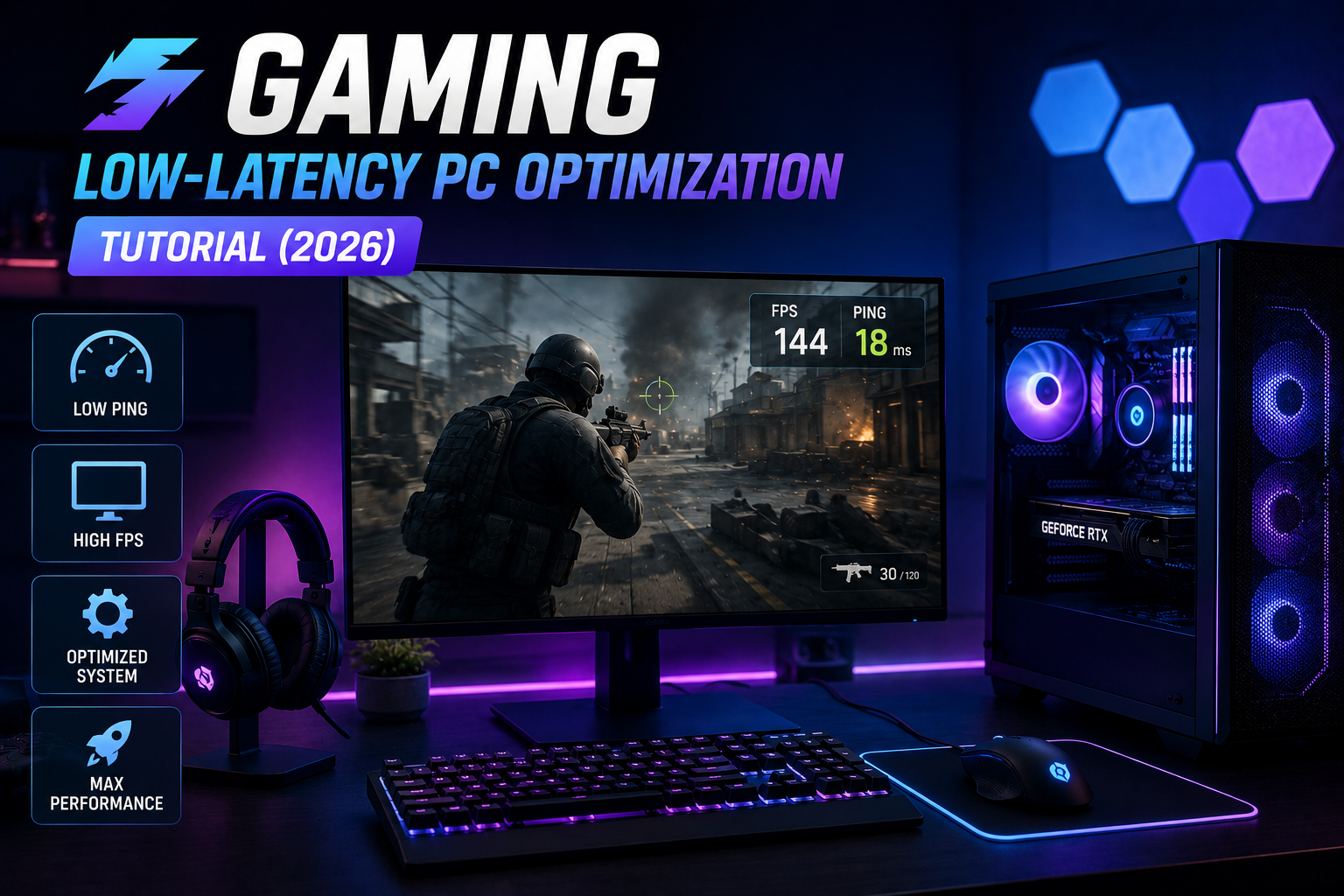
Gaming: Low-Latency PC Optimization Tutorial (2026)
Gaming: Step-by-Step Low-Latency PC Optimization (2026)
Competitive players and perceptive hobbyists know that raw frame rate isn’t the whole story. Latency—input delay, frame timing, and network lag—shapes how a game feels. This practical tutorial walks you through proven 2026 techniques to optimize your PC and home network for low-latency Gaming without immediately buying new hardware.
What you’ll need
- A Windows 10/11 or modern Linux PC with administrative access
- Wired Ethernet connection (recommended) or a quality Wi‑Fi 6E/7 router
- Latest GPU drivers from NVIDIA or AMD
- Tools: in-game FPS counter, RTSS or NVIDIA FrameView, PingPlotter or similar
Step 1 — System and driver basics
Start with the fundamentals. Update GPU drivers, motherboard BIOS, and network adapter firmware. Use the official vendor release notes: driver updates from NVIDIA and AMD frequently include latency improvements and bug fixes that matter for Gaming responsiveness.
- Install the latest chipset and network drivers from your motherboard vendor.
- Set Windows power plan to ‘High performance’ or ‘Ultimate Performance’ on desktops; disable aggressive CPU throttling.
- Turn off background apps that use CPU, disk, or network bandwidth (cloud sync, torrents, video encoders).
Step 2 — GPU and display tuning
GPU control panels offer low-latency features. Apply them carefully per game.
- Enable low-latency modes: NVIDIA ‘Low Latency’ / ‘Ultra Low Latency’ or AMD ‘Anti-Lag’. These reduce render queue depth.
- Prefer higher refresh-rate monitors (120Hz, 144Hz, 240Hz+) and set the OS and GPU to match the panel’s native rate.
- Turn off V-Sync for fastest input unless tearing is unacceptable; consider adaptive sync (G-SYNC/FreeSync) to balance smoothness and latency.
Step 3 — In-game settings checklist
Reduce render complexity while preserving clarity for gameplay.
- Lower motion blur, depth of field, and heavy post-processing effects.
- Use medium shadows and textures if necessary to boost stable frame pacing.
- Enable frame pacing or ‘present’ optimizations if the game supports them.
Step 4 — Network tuning for online Gaming
Network lag is often the biggest contributor to perceived delay. Prioritize a wired connection first.
- Use Ethernet whenever possible. If using Wi‑Fi, connect via Wi‑Fi 6E/7 and minimize interference.
- Configure router QoS to prioritize game traffic or your PC’s IP/MAC address.
- Close background apps that use upload bandwidth. For team voice, use low-bandwidth codecs and prioritize them in QoS.
- Test ping and jitter with tools such as PingPlotter or the built-in network diagnostics; aim for consistent latency and minimal packet loss.
Step 5 — Input devices and OS tweaks
Peripherals and OS settings influence end-to-end input latency.
- Use wired mice/keyboards or high-quality wireless with low-latency polling. Set polling rate to 500–1000Hz if supported.
- Disable mouse acceleration and Windows pointer precision in control panel.
- Turn off overlay apps (Discord, Steam, GeForce Experience) during competitive sessions; overlays can add frame and input latency.
Step 6 — Measure, iterate, repeat
Optimization without measurement is guesswork. Tools help you quantify improvements.
- Use an FPS/frametime tool like RTSS or FrameView to monitor consistent frame pacing.
- Measure input-to-display latency with high-speed cameras or software approximations where possible. LatencyMon can help identify system-level delays.
- Document changes and revert if a tweak harms consistency. The goal is low and stable latency, not just peak FPS.
Frequently Asked Questions
Will a new GPU always reduce latency?
Not necessarily. Newer GPUs can increase FPS and reduce render time, but system bottlenecks (CPU, storage, network) and settings also drive latency. Start with tuning before upgrading.
Is Ethernet always better than Wi‑Fi for Gaming?
Yes: wired Ethernet typically offers the lowest and most consistent ping and no interference. Modern Wi‑Fi standards are improved, but wired remains the gold standard for competitive Gaming.
Which settings hurt latency the most?
V-Sync, heavy post-processing, background overlays, and high input buffer queues are common culprits. Enabling GPU low-latency modes and reducing render queue depth often help most.
Conclusion
Optimizing for low-latency Gaming in 2026 is a mix of discipline and measurement. Update drivers, tune GPU and in-game options, prioritize your network, choose responsive peripherals, and measure results. Incremental changes compounded produce a noticeably faster, more responsive experience—often without immediate hardware upgrades. For broader industry trends and player behavior, consult reports from the Entertainment Software Association and platform surveys such as the Steam Hardware & Software Survey for context on common hardware configurations.
References: Entertainment Software Association (ESA) industry reports; NVIDIA and AMD driver notes; Steam Hardware & Software Survey for user trends.