Android 17 simplifies switching from iPhone to Android
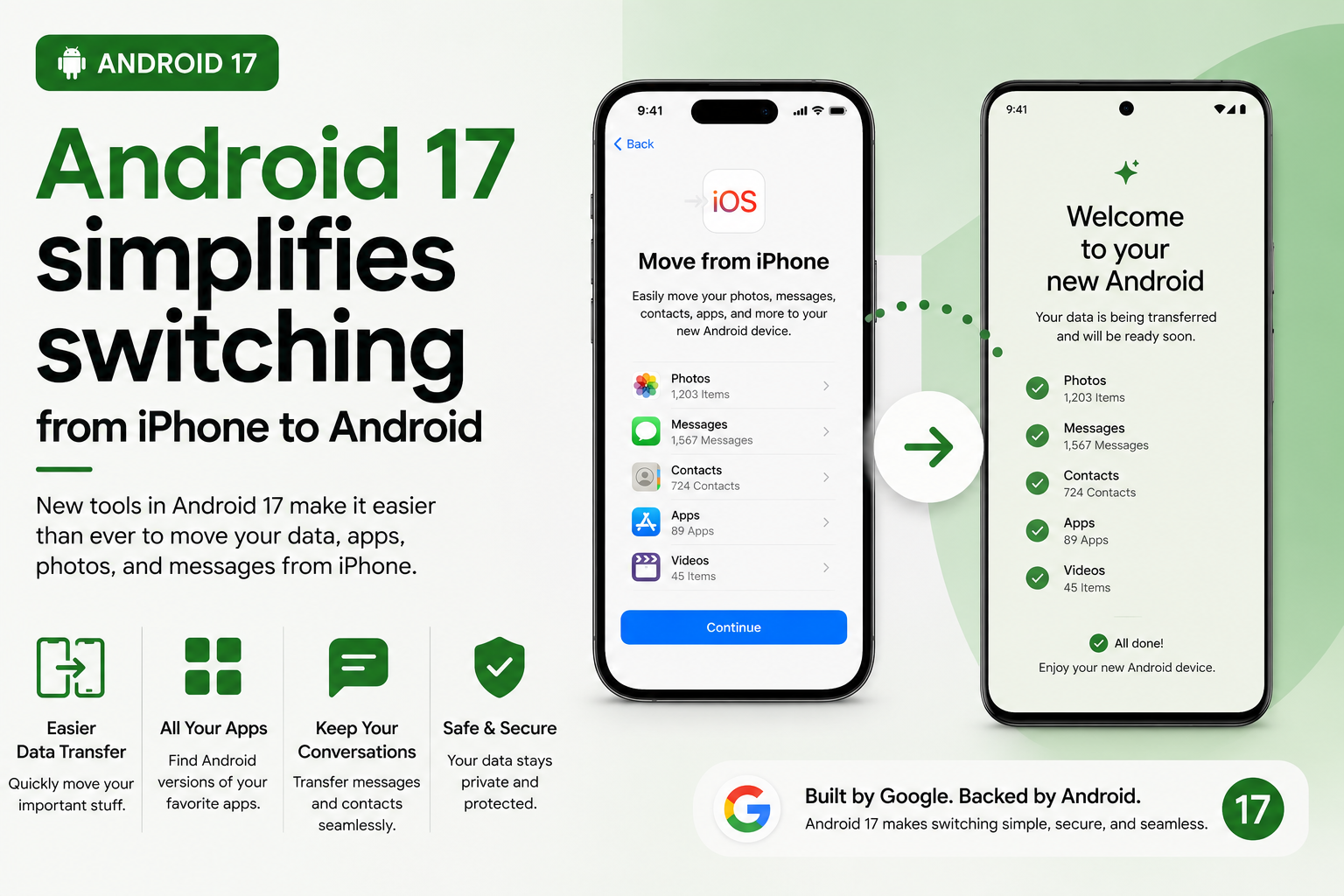
Android 17 switch iPhone to Android delivers a far smoother migration than previous versions, letting you move much more of your data wirelessly during setup. After the initial rollout to eligible Pixel models and Samsung’s Galaxy Z Fold 8 and Galaxy Z Flip 8 via Smart Switch, Google plans to expand the feature to more Android phones over time.
Android 17 switch iPhone to Android: what moves and what’s missing
The rebuilt migration tool transfers a wide range of content that older wireless methods couldn’t touch. Expect your apps, saved passwords and passkeys, messages, files, homescreen layout and even your eSIM profile to copy over without needing a cable. That reduces the manual setup that used to follow every phone swap.
- Transferred: apps, passwords, passkeys, SMS/MMS, files, homescreen layout, eSIM profile
- Not yet supported: photo albums (Google lists this as coming soon), some app-specific data in rare cases
- Previously skipped items now included: alarms, call history, and downloaded files
How the new Android Switch works in practice
During initial device setup, qualifying Android phones show a QR code you scan from your iPhone to start the wireless phone transfer. The process uses a secure, device‑to‑device connection to move data directly, so you don’t need cloud backups or cables in most cases.
Device support and practical tips
Right now the best experience is on Pixel Android 17 phones and Samsung’s latest foldables via Smart Switch Galaxy Z Fold 8 and Galaxy Z Flip 8. If you plan to move from iPhone to Android, check your new phone’s setup prompts for the QR code and have both devices charged and on the same Wi‑Fi network when prompted.
For eSIM transfer Android users, follow the on‑screen steps during migration to port your carrier profile. If your carrier requires additional steps, you may need to contact them to complete activation after the transfer finishes.