Manage Your Android Phone From a Laptop Browser
manage Android phone from browser
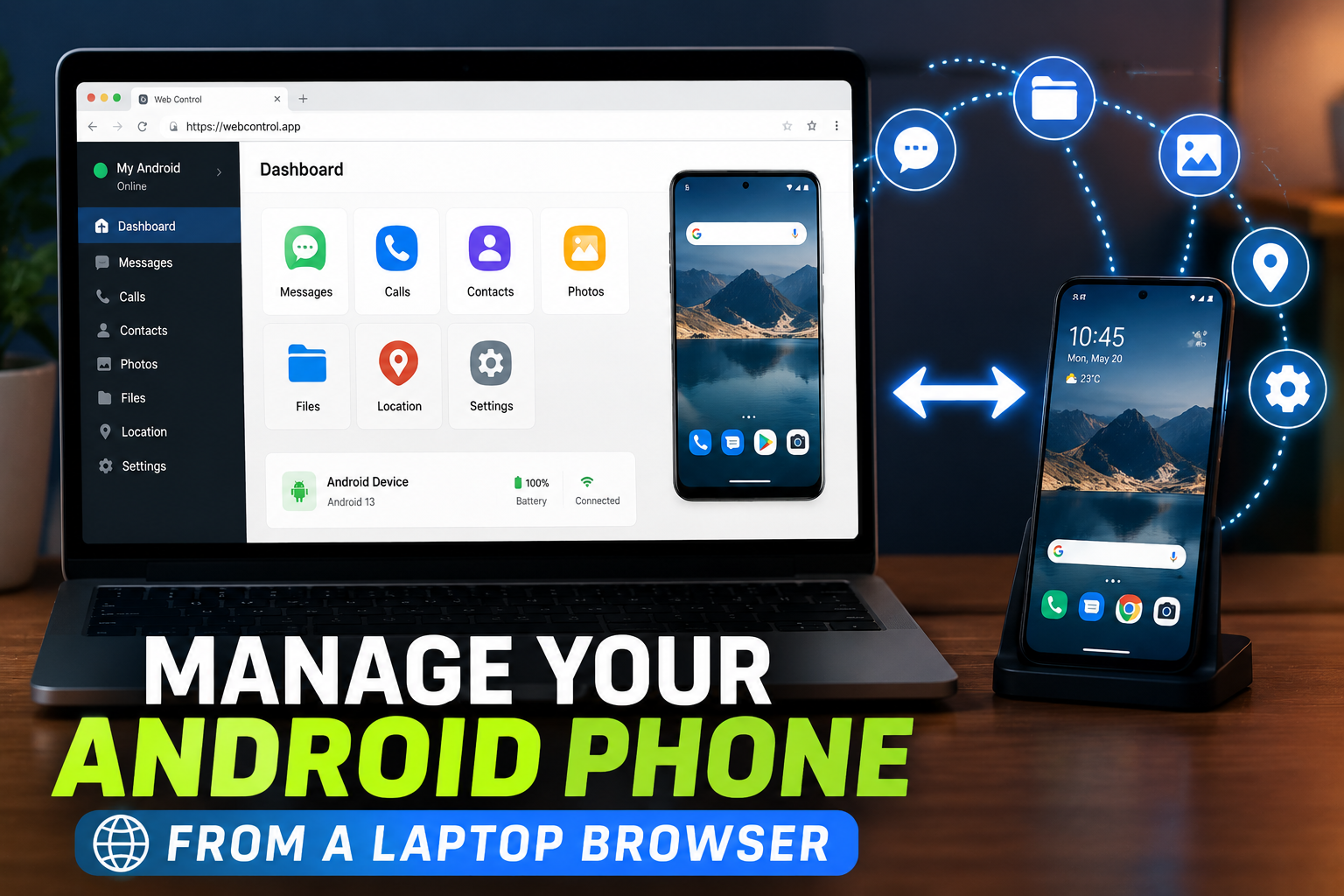
I started using PlainApp to manage Android phone from browser and it quickly replaced several clumsy workflows. Once logged in, the browser becomes a compact control center for files, media, messages, contacts, notes, and even screen mirroring.
Dashboard and navigation
The dashboard makes smart use of extra screen space. A slim left rail lists Files, Audio, Images, Videos, and Chat, while the main area shows cards for documents, apps, notes, feeds, messages, calls, contacts, and a screen mirror panel. A global search box sits at the top, plus small fields to push text to the phone clipboard or initiate a call from the laptop.
Files and media
File management is where PlainApp shines for anyone who needs to transfer files from Android to PC without cables. The Files view lets you browse shared storage, upload and download items, rename, delete, and select multiple files at once. Downloads and uploads are handled directly through the browser, so grabbing a batch of screenshots or sending a PDF back to the phone takes a few clicks.
Images and Videos are organized into folders with both grid and list views. That makes frequently used folders like Screenshots and Camera roll far easier to reach than Android’s built-in picker. If you write or edit from a laptop, this considerably speeds tasks that previously required emailing items to yourself or hunting for a USB lead.
Messages, calls and contacts
Note: SMS and call features are available in the F‑Droid or GitHub builds rather than the Play Store build because of store restrictions. With those features enabled, the browser dashboard shows SMS threads, lets you compose and send messages, and provides a searchable call history with one-click callbacks. You can also open a contact and start a call directly from the laptop.
These capabilities overlap with functionality in apps like Microsoft’s Phone Link, but PlainApp delivers them through a local web interface rather than a platform-specific desktop client. For users who prefer browser-based tools or who use Linux or ChromeOS, that approach is particularly convenient.
Apps, notes and feeds
PlainApp lists installed apps and offers APK export if you want to back up packages. A simple notes tool and an integrated RSS reader are included for quick reference and clipping. These extras turn the dashboard into more than a file server — it becomes a lightweight productivity hub tied directly to your device.
Screen mirroring and interaction
The built‑in mirroring feature displays your phone screen in the browser. It isn’t as interactive or low-latency as dedicated tools such as scrcpy, but it’s handy for quick previews, troubleshooting, or reading notifications without picking up the handset. Having mirroring side-by-side with files and messages makes certain tasks — like checking an app setting while transferring files — smoother.
Small touches that matter
- Cross‑device clipboard: A Send to phone clipboard box moves text from laptop to phone instantly. Once you use this cross-device clipboard, emailing or messaging yourself feels obsolete.
- Local chat: PlainApp includes a Local chat room where you can drop images, videos, or notes into a private conversation that appears immediately in the browser. It’s a fast way to pass links and snippets between devices without involving cloud chat apps.
- APK export: Handy for backing up or sharing installed apps, especially on devices where Google Play restrictions limit direct downloads.
As a PlainApp review note: the app is an open source Android tool that acts as a local web server phone interface, so everything runs on your network and none of your files need to pass through third-party clouds. That local-first design, combined with the F‑Droid Android app availability and GitHub source, makes it a strong option for anyone who wants straightforward Android remote access without subscriptions or ads.
Overall, PlainApp turns a browser into a capable phone drawer: quick file transfers, message handling, basic mirroring, and useful utilities all available from a single local web interface. For people who spend long hours at a laptop, it removes many little interruptions and speeds common tasks like transfer files from Android to PC and sending snippets to your phone.
manage Android phone from browser
The local-first approach of PlainApp means you can manage Android phone from browser without signing into any cloud service, installing a desktop client, or wrestling with cables. Once the app is running on your handset, a browser dashboard gives you quick access to files, photos, messages, contacts, and basic screen mirroring over your home network.
Lock it down before you use it
PlainApp routes traffic directly between your phone and the browser on the same network, which keeps data out of third-party clouds but also shifts responsibility for security to you. The app encrypts its API traffic with XChaCha20-Poly1305 and supports TLS when you connect via HTTPS, but the self-signed certificate triggers a browser warning. Treat that warning as normal: verify the address on your phone, accept the certificate if you trust the device’s network, and then approve the login request on the handset.
- Prefer HTTPS over HTTP so file transfers are wrapped in TLS as well as the app’s payload encryption.
- Keep connection approval enabled so each new browser session must be allowed on the phone.
- On shared or public Wi‑Fi, set a password or avoid using PlainApp entirely; the dashboard can expose messages, contacts, and files.
- Remember that closing the browser tab does not stop the phone’s web service — tap Stop service in the app when you’re done.
Because PlainApp is an open source Android tool distributed via F‑Droid and GitHub, anyone can inspect the code. That transparency is a strong point in a PlainApp review: it reduces the risk of hidden telemetry or surprise cloud syncs, but it does not replace sensible network hygiene.
Practical security settings
- Confirm the local IP or hostname shown in the app before connecting from a laptop.
- Enable only the permissions you need (files, SMS, calls, contacts are optional toggles in Web Settings).
- Use the app’s built-in session controls and consider a PIN or password if you’ll ever run PlainApp on a less-trusted network.
- Turn on “Stay Online Mode” or disable battery optimization if background throttling drops your connection during important transfers.
My phone can stay face down now
After a few days of daily use, PlainApp replaced several little rituals: emailing myself screenshots, fishing out a USB cable, or switching to a phone when I just needed a quick file or link. The file manager alone made transferring files from Android to PC painless — drag-and-drop from the browser, batch downloads, and easy uploads back to folders on the handset.
The app’s cross-device clipboard is one of those tiny conveniences that quickly becomes indispensable: paste a snippet or URL in the browser box and it appears on the phone clipboard instantly. The integrated Local chat offers another low-friction path for moving images, notes, or links without firing up WhatsApp or emailing yourself.
For communication and device control, the sideloaded builds (F‑Droid or GitHub) restore SMS, call history, and contacts features that the Play Store edition omits for policy reasons. From the browser you can read and send messages, call a contact with one click, and export APKs of installed apps — handy for backups or sharing an app when Play Store access is restricted.
Screen mirroring is available too, though it’s not a replacement for specialized tools like scrcpy if you need full touch control and low latency. Still, having a live view of the phone next to files and messages inside the same browser window is very convenient for quick demonstrations or copying content.
As an Android remote access solution, PlainApp is lightweight, private, and free — no ads, no subscriptions. Its local web server phone model and open source license make it especially appealing to power users who prefer self-hosted, privacy-forward tools. If you want simple Android browser management from any modern laptop and value direct, local transfers over cloud syncing, PlainApp is worth trying.
Availability: PlainApp runs on Android 9.0 and later and works from any recent browser on Windows, macOS, Linux, or ChromeOS when both devices share a network. Install via the F‑Droid Android app for the fullest feature set, or grab builds from GitHub or the Google Play Store (note: SMS and call features may be limited on Play).